

Crypto.com Wallet Tutorial

Crypto.com Wallet Tutorial

Contents:
- How to sign up for a new Crypto.com Wallet
- How to buy cryptocurrency using a credit card
- How to sell cryptocurrency
- Receiving cryptocurrency
- Sending cryptocurrency
How to sign up for a new Crypto.com Wallet
1.1 Install the free app on mobile iOS or Android:
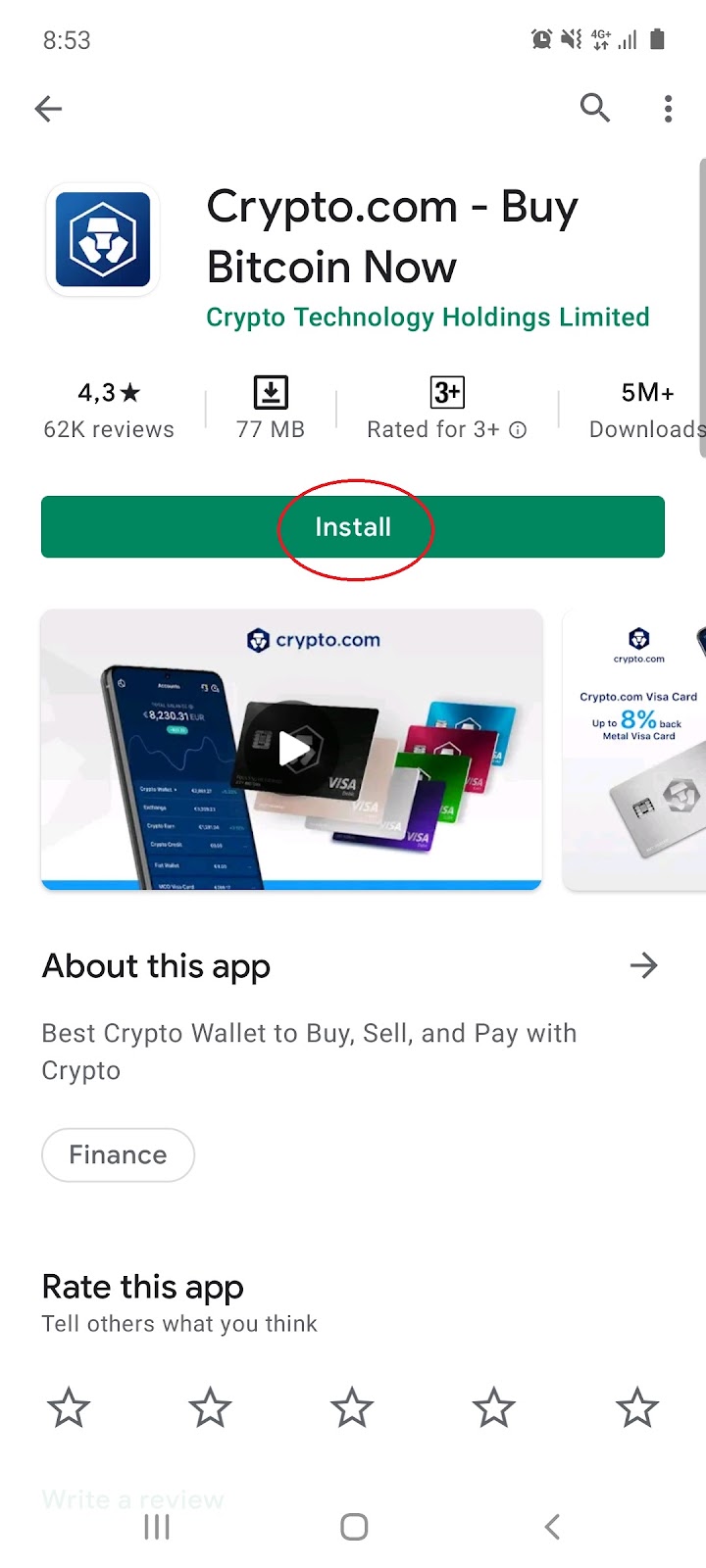
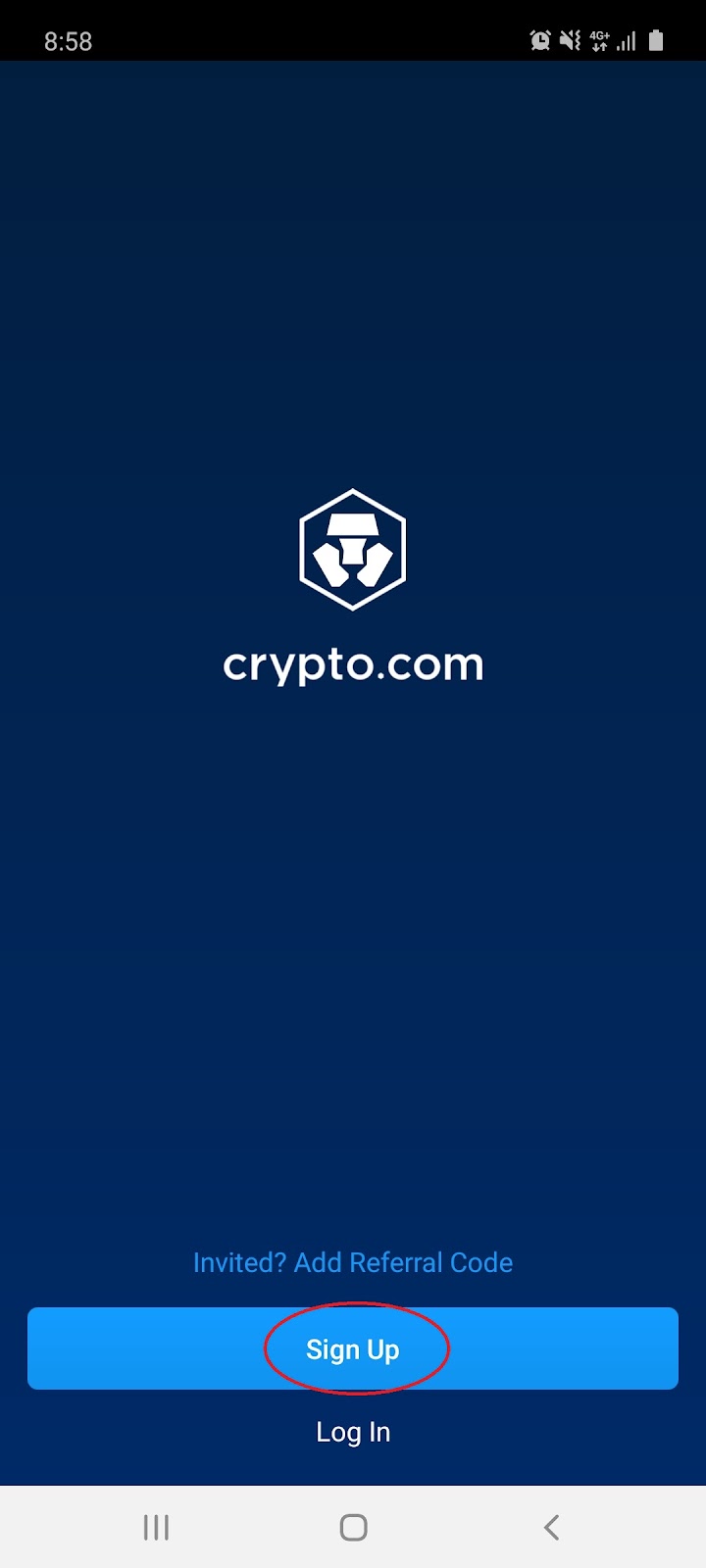
1.2 Once installed, open the app and select ‘Sign Up’:
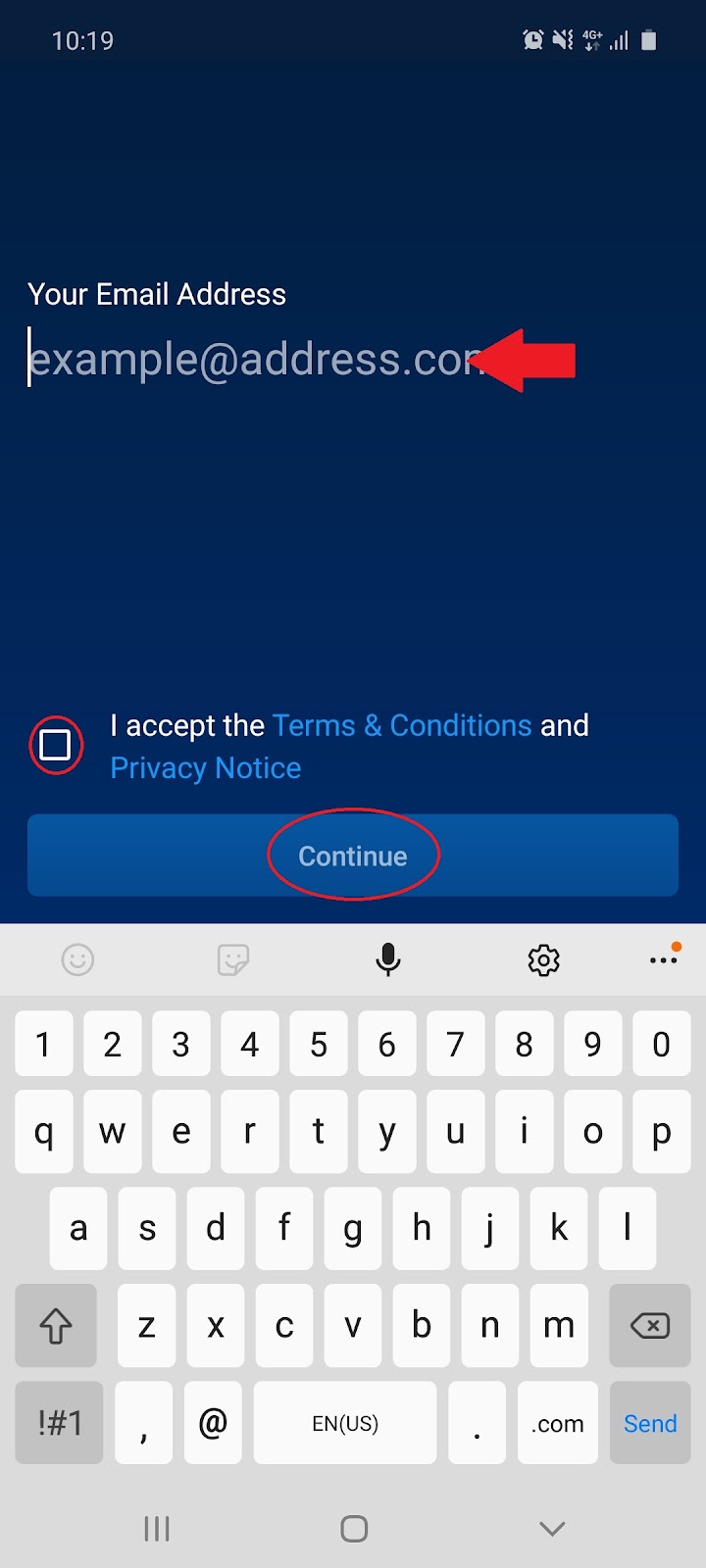
1.3 Enter your email address, accept the terms and conditions, then click ‘Continue’:
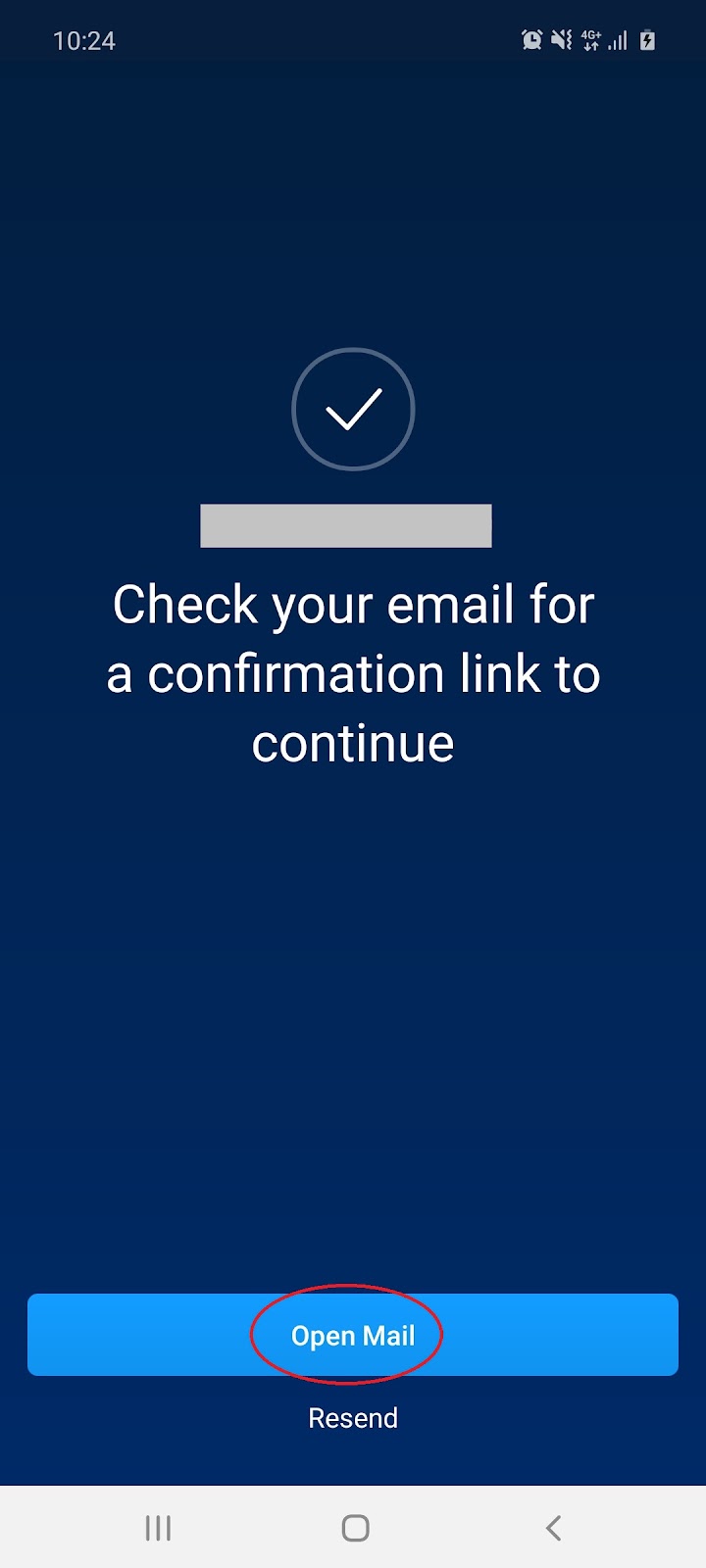
1.4 You will be prompted to confirm your email address by selecting ‘Open Mail’:
1.5 Open your email from Crypto.com and select ‘Login’:
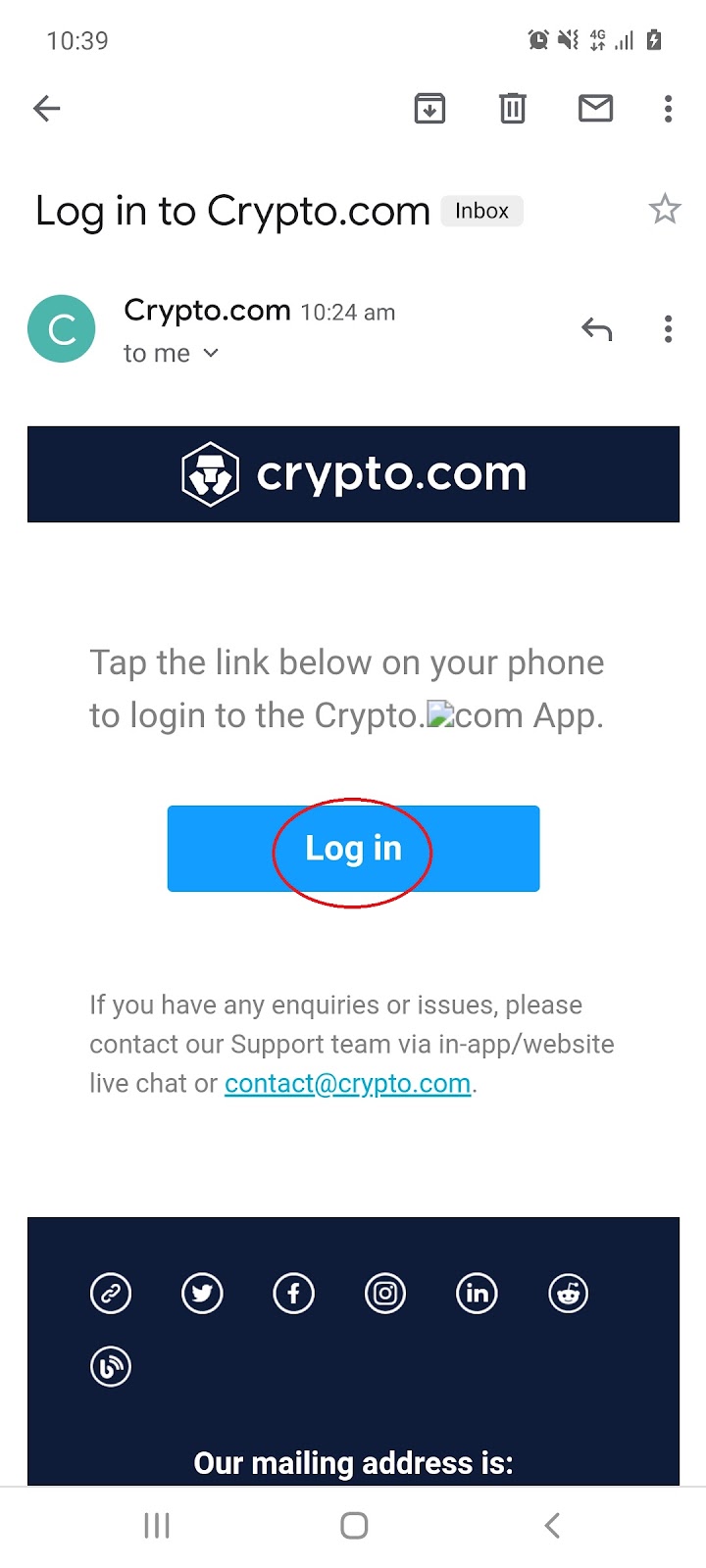
1.6 You will be redirected back to the app. Tap the screen to continue to the next page:

1.7 Enter your phone number, then select ‘Send Verification Code’:
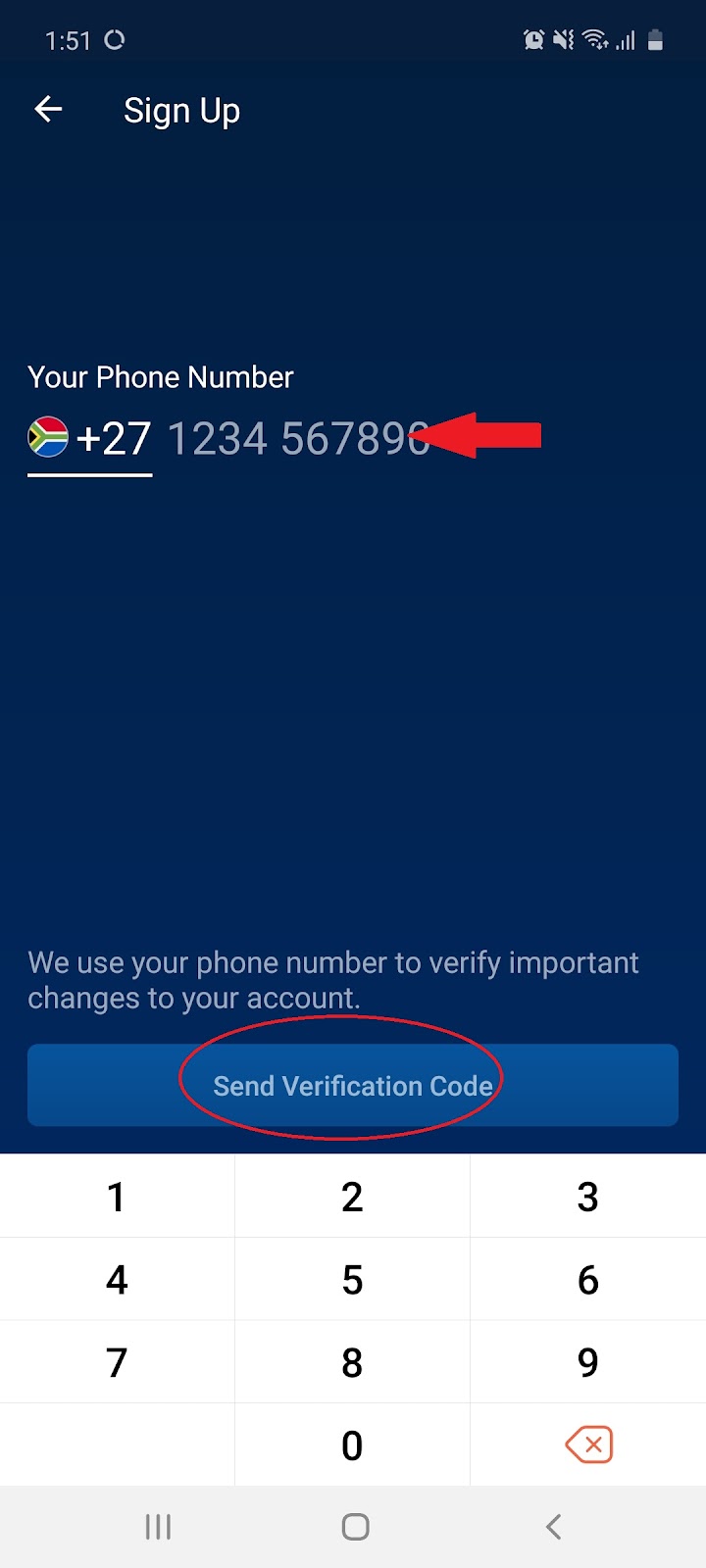
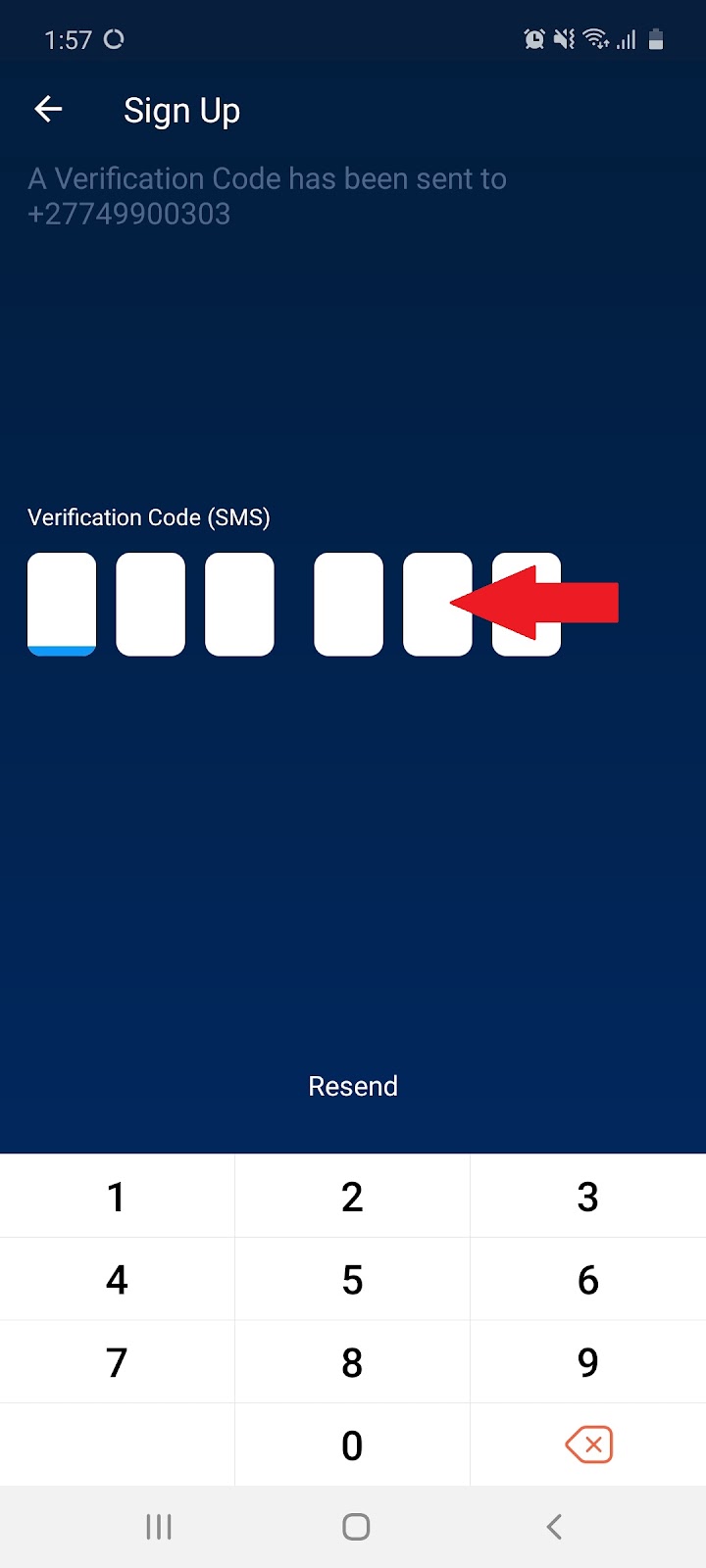
1.8 Enter the verification code sent to your phone via SMS:
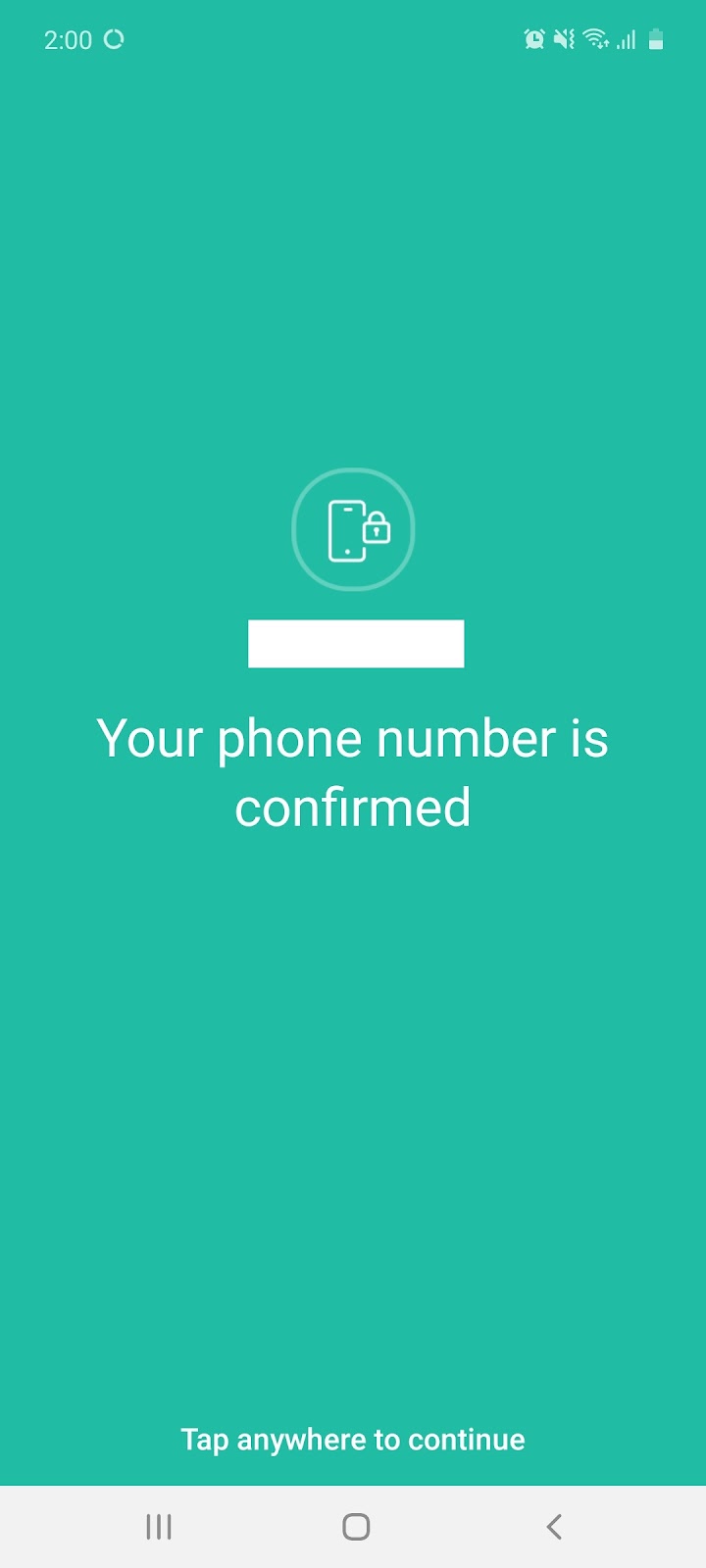
1.9 Once your phone number has been confirmed, tap the screen to continue to the next page:
1.10 Select whether you would like to receive exclusive offers via email and click ‘Continue’:

1.11 You will be prompted to complete your Identity Verification before you can ‘Continue’:
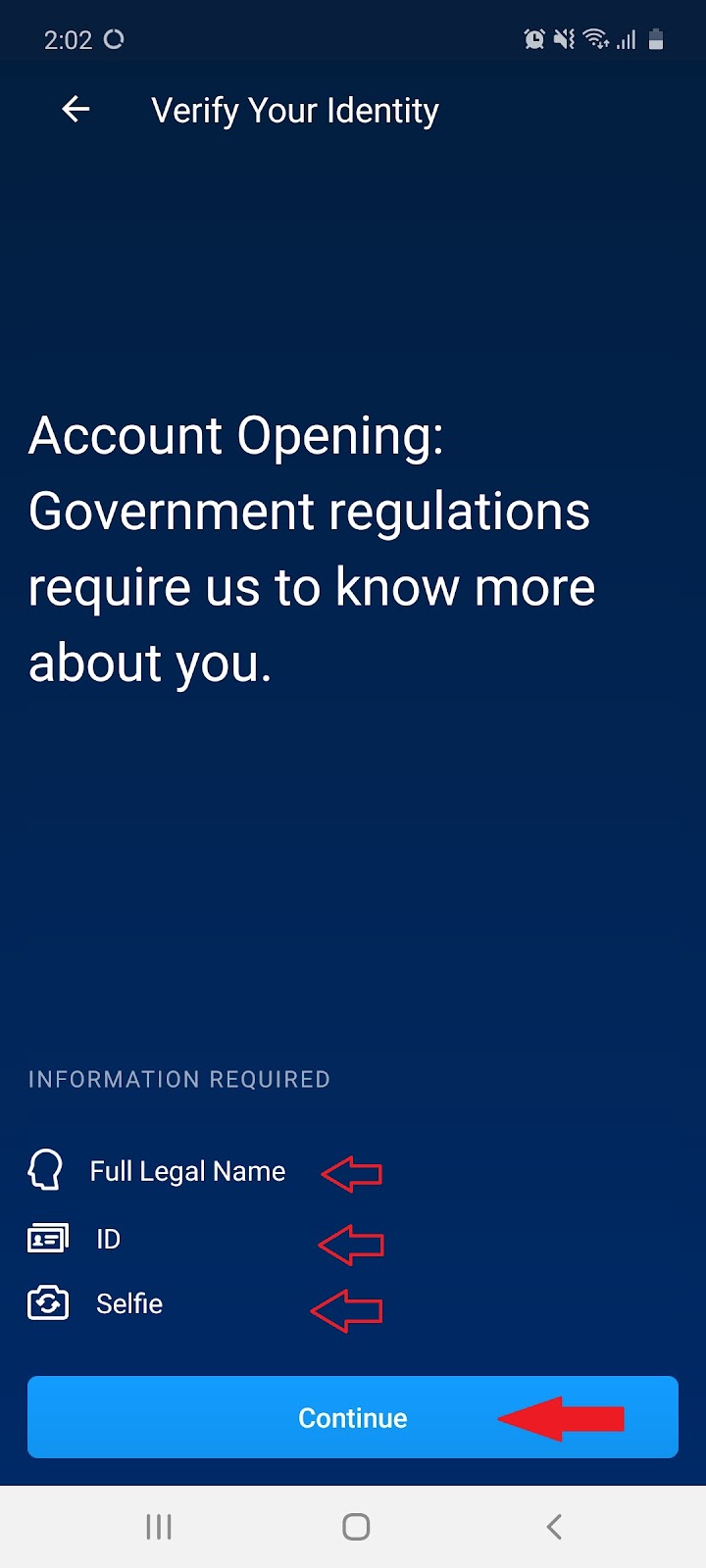
Note: It can take 2-3 days for your info to be processed and account to be opened
2. How to buy cryptocurrency using a credit card
Note: Before Transacting Cryptocurrency, you must register for an account and complete your Identification Verification or KYC (Know Your Customer).
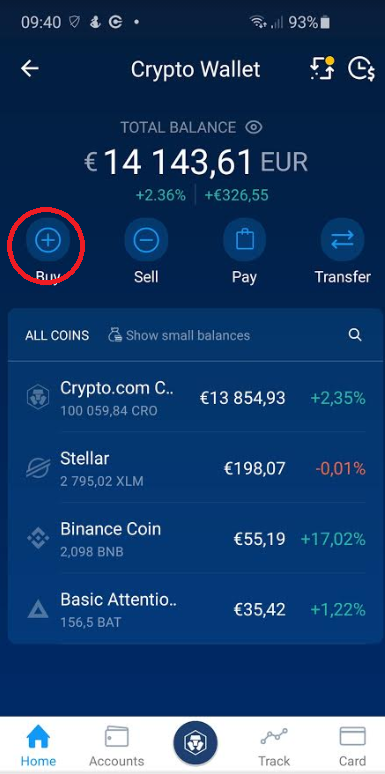
2.1 Open the Crypto.com App and Select ‘Buy’:
2.2 Select the cryptocurrency you would like to purchase:
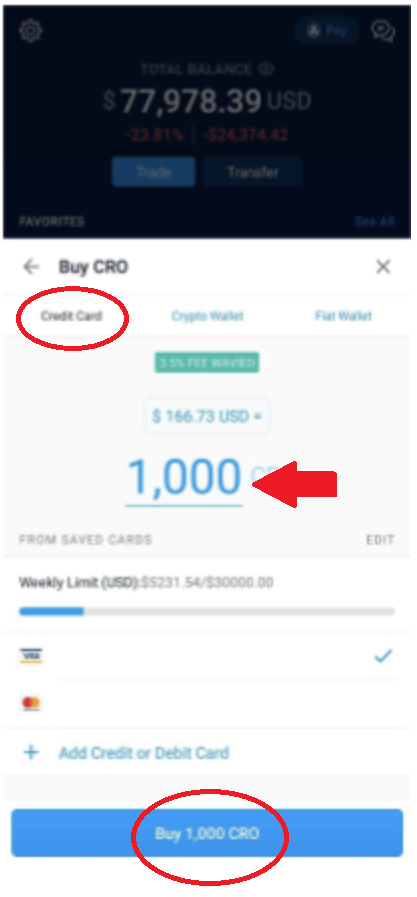
2.3 Select credit card as the purchase method, input the amount and select ‘Buy’:
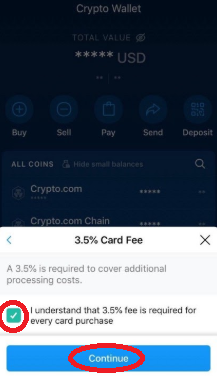
2.4 Accept the 3.5% Card Fee and select ‘Continue’:
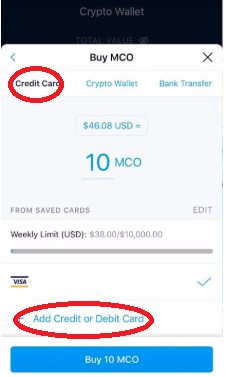
2.5 Select ‘Add Credit or Debit Card’:
2.6 Fill out your Credit/Debit Card information:
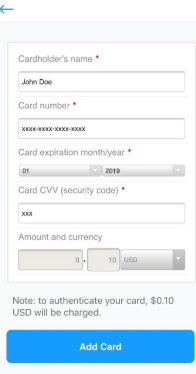
Note: A $0.10 will be charged to your card to authenticate the transaction.
2.7 Fill in the amount of cryptocurrency you would like to purchase and click ‘Buy’:
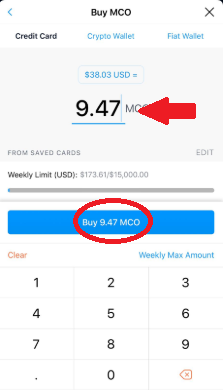
2.8 Review the transaction and select ‘Confirm’:
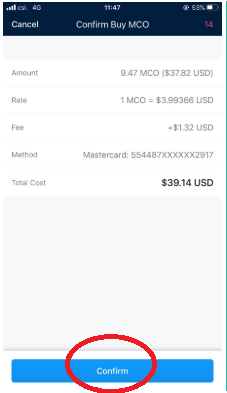
2.9 Congratulations! You’ve purchased cryptocurrency:
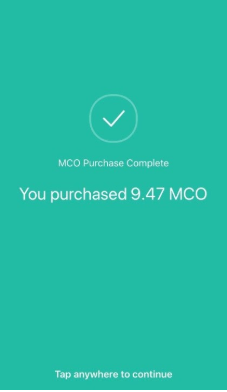
Note: You will receive a confirmation email with your transaction details. The transaction details will also be shown in the respective wallet of your transaction.
3. How to sell cryptocurrency
3.1 Open the Crypto.com app and select ‘Sell’:
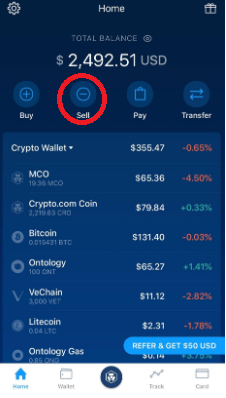
3.2 Select the cryptocurrency you would like to ‘Sell’:
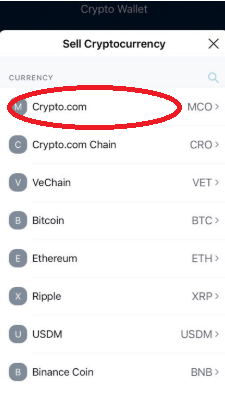
3.3 Fill in the amount, select the cryptocurrency you would like to sell for, then click ‘Sell’:
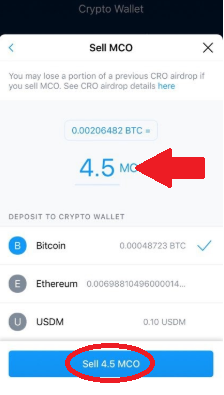
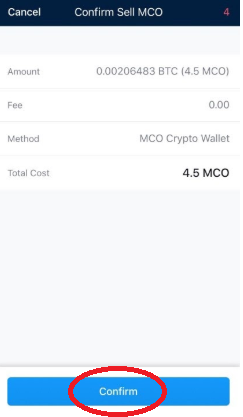
3.4 Review your transaction then select confirm:
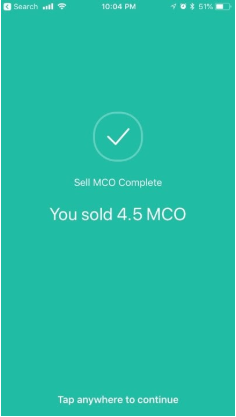
3.5 Congratulations! You’ve Sold Cryptocurrency:
4. Receiving cryptocurrency
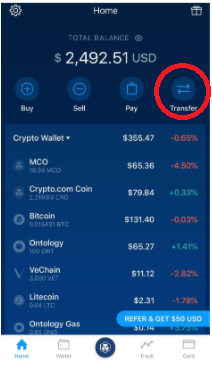
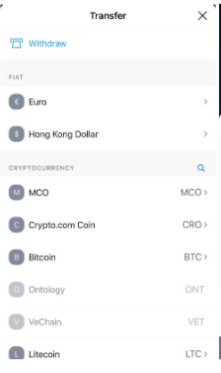
4.1 On the home page of wallet select ‘Transfer’:
4.2 Choose which cryptocurrency you would like to receive
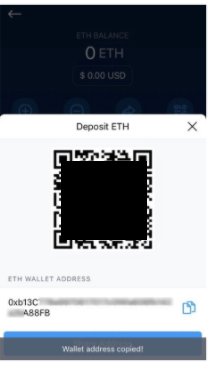
4.3 Choose to receive via scanning your QR code or copying your wallet address:
5. Sending cryptocurrency
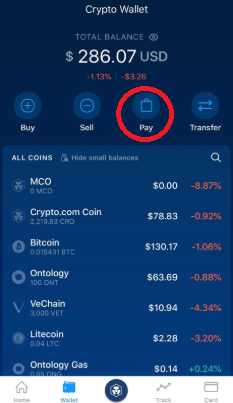
5.1 On the home page of wallet, select ‘Pay’:
5.2 On the Pay Page select ‘Send’:
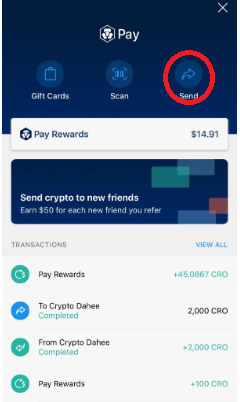
Note: This feature is available to Crypto.com wallet users only.
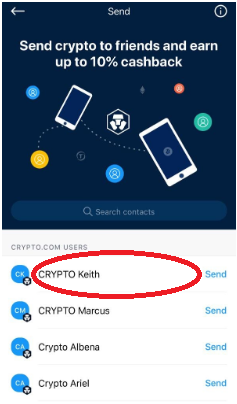
5.3 Navigate through your contacts and select which friend you wish to send to:
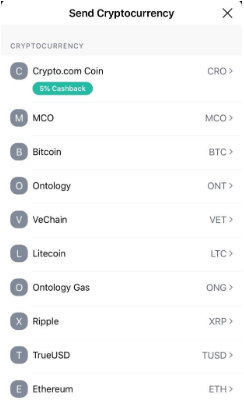
5.4 Select which cryptocurrency you wish to send:
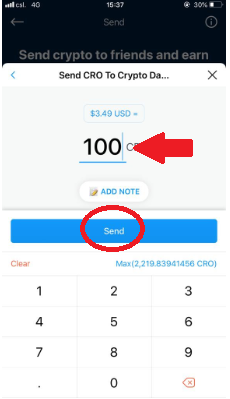
5.5 Fill in the amount you would like to send by selecting ‘Send’:
5.6 Review the transaction then select ‘Confirm’:
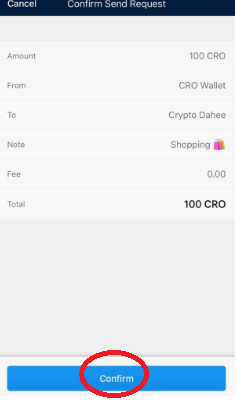
5.7 You’ve instantly sent cryptocurrency to your friend with no fees charged:

Share Transmission
Broadcast this signal to your network
More News

Tom Lee’s Ethereum Investment Explained: The BitMine Play
Tom Lee is turning BitMine (BMNR) into a giant Ethereum treasury aiming to own 5% of all ETH. Learn how the strategy works, why it matters, and its risks.

Crypto Calendar July 2026: Key Events, Token Unlocks and Regulatory Dates
A neutral guide to the July 2026 crypto calendar, covering MiCA and GENIUS Act deadlines, Japan’s new law, major token unlocks, Fed dates and industry events.

What Are Bitcoin ETF Outflows? How They Work and Why They Matter
Learn what Bitcoin ETF outflows are, how they affect Bitcoin's price, and what drove the record outflow streak in May-June 2026. A clear, jargon-free explainer.